To watch ITVX on TV, you’ll need to have the ITVX app installed on a smart TV or a TV with a connected streaming device. To check if we support yours, please see this article: Which TVs and streaming platforms can I watch ITVX on?
First of all, go to your TV’s list of apps then click on the ITVX icon to open it. When it loads, choose something to watch and we’ll ask you to sign in.
There are three ways to sign in and we’ll take you through each one below. Pick the option that works best for you.
Option 1: Sign in with a QR code
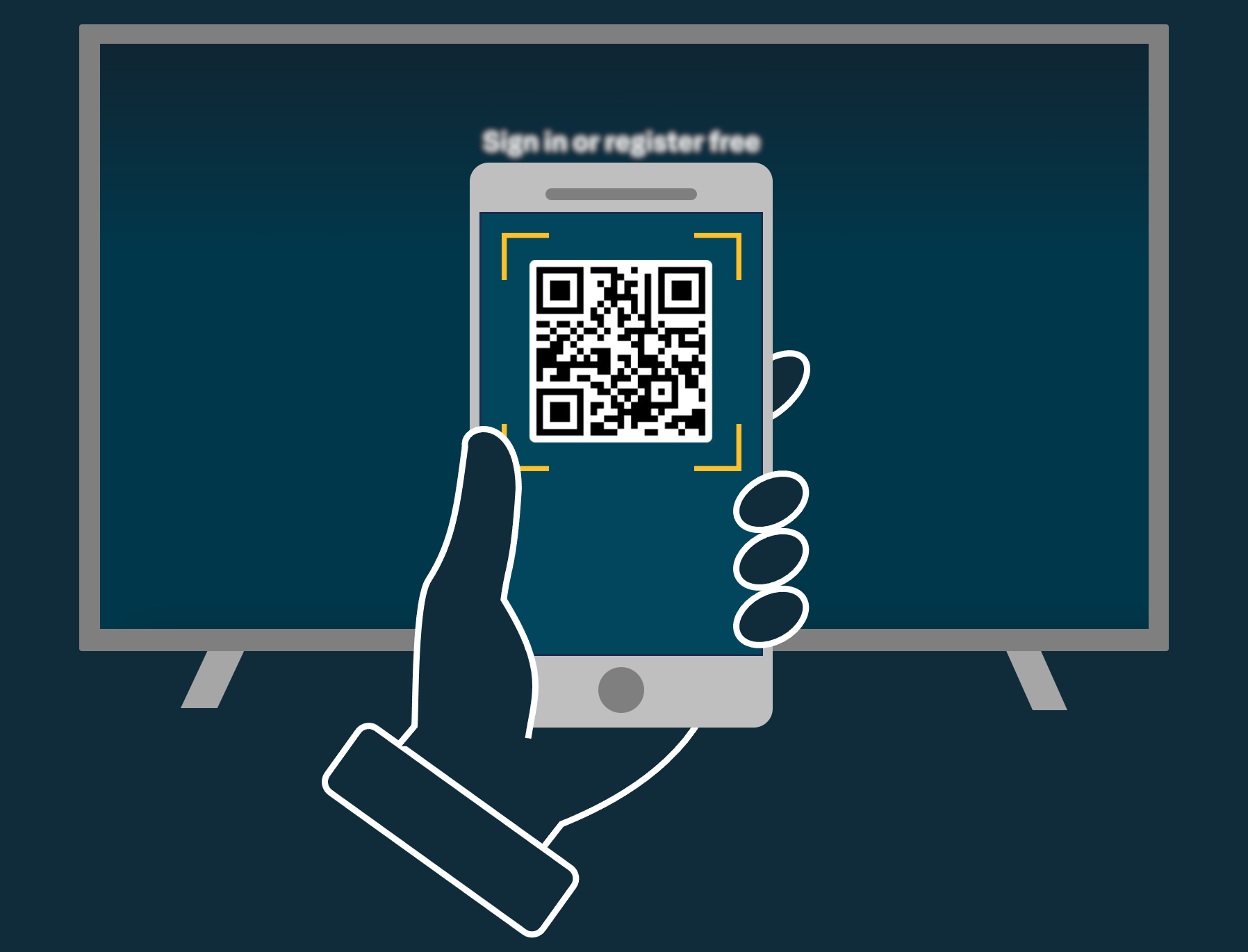
1. You’ll need to use your smartphone or tablet for this. Open up the camera and point it at the QR code shown on your TV.
2. Once the QR code is recognized, tap the link that appears on screen.
3. A new window will open up the ITVX website. If you’re already signed in on the website, you’ll be automatically signed in on your TV. If you’re not signed in on the website, we’ll ask you to enter your email address to sign in or register.
(If you're asked to enter a code, go to Step 3 of Option 2 below.)
Helpful tip:
When scanning the QR code, we only recommend using your device’s camera app. There are some QR code reader apps that redirect users to sites not affiliated with ITV and ask for your payment details. If you are taken to a site that is not ITV, we advise you to leave that site immediately and try Option 2 instead.
Option 2: Sign in with a numeric code
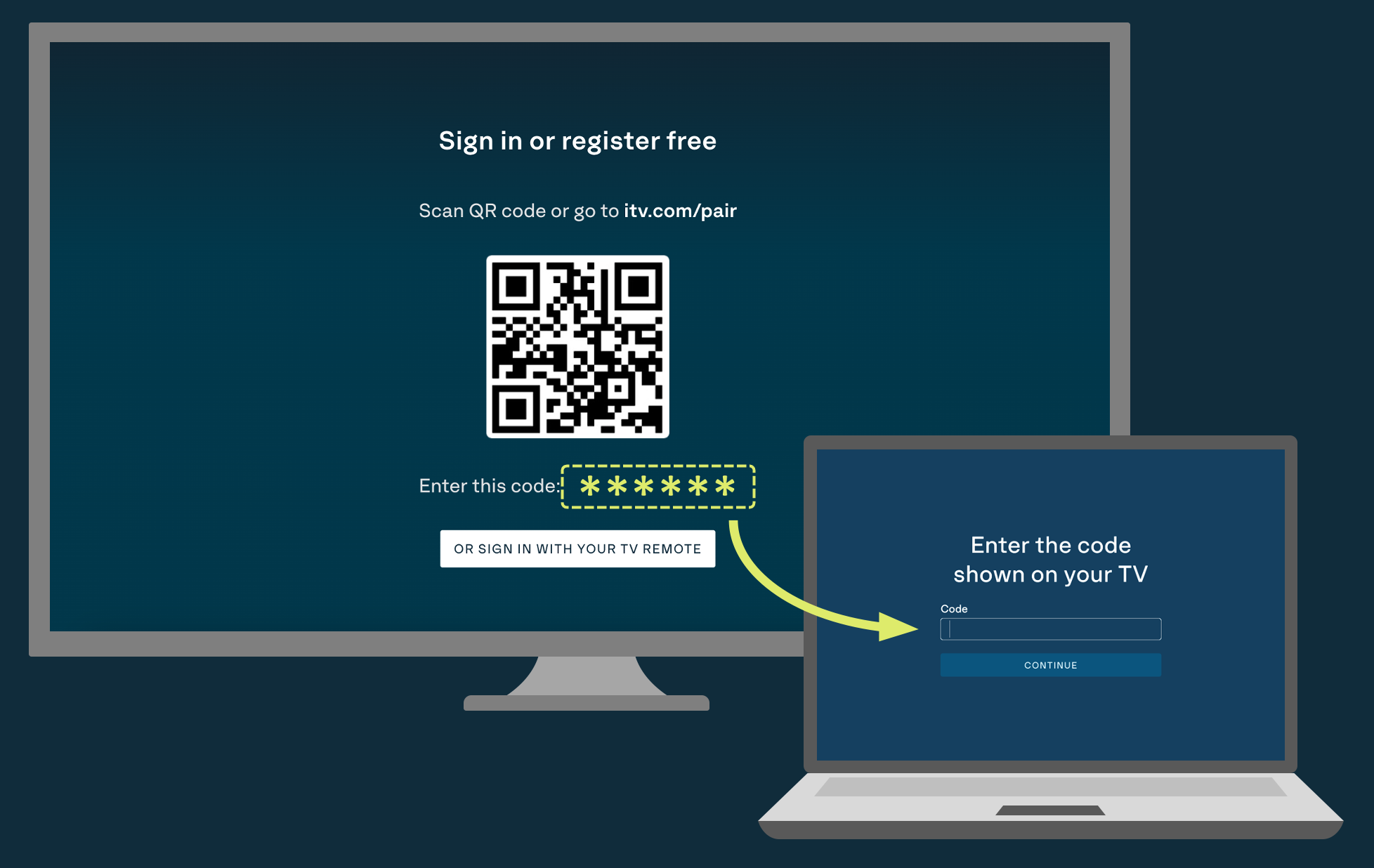
1. You’ll need to use a computer, tablet or smartphone for this. Open a web browser and go to: itv.com/pair.
2. If you’re not already signed in on the website, follow the instructions to sign in or register.
3. Once you’re signed in on the website, you’ll be asked to enter the code shown on your TV. Type in the numeric code shown towards the bottom of your TV screen and click continue.
4. You’ll be automatically signed in on your TV.
Helpful tip:
The numeric code will be between 6 to 10 digits long and is only valid while it’s displayed on your TV screen. The code will expire after an hour. So if the code doesn’t work, double check that you’ve typed it correctly and that it hasn’t expired. You can get a new code on your TV by navigating away from the login screen and then returning to it.
Option 3: Sign in with a remote control
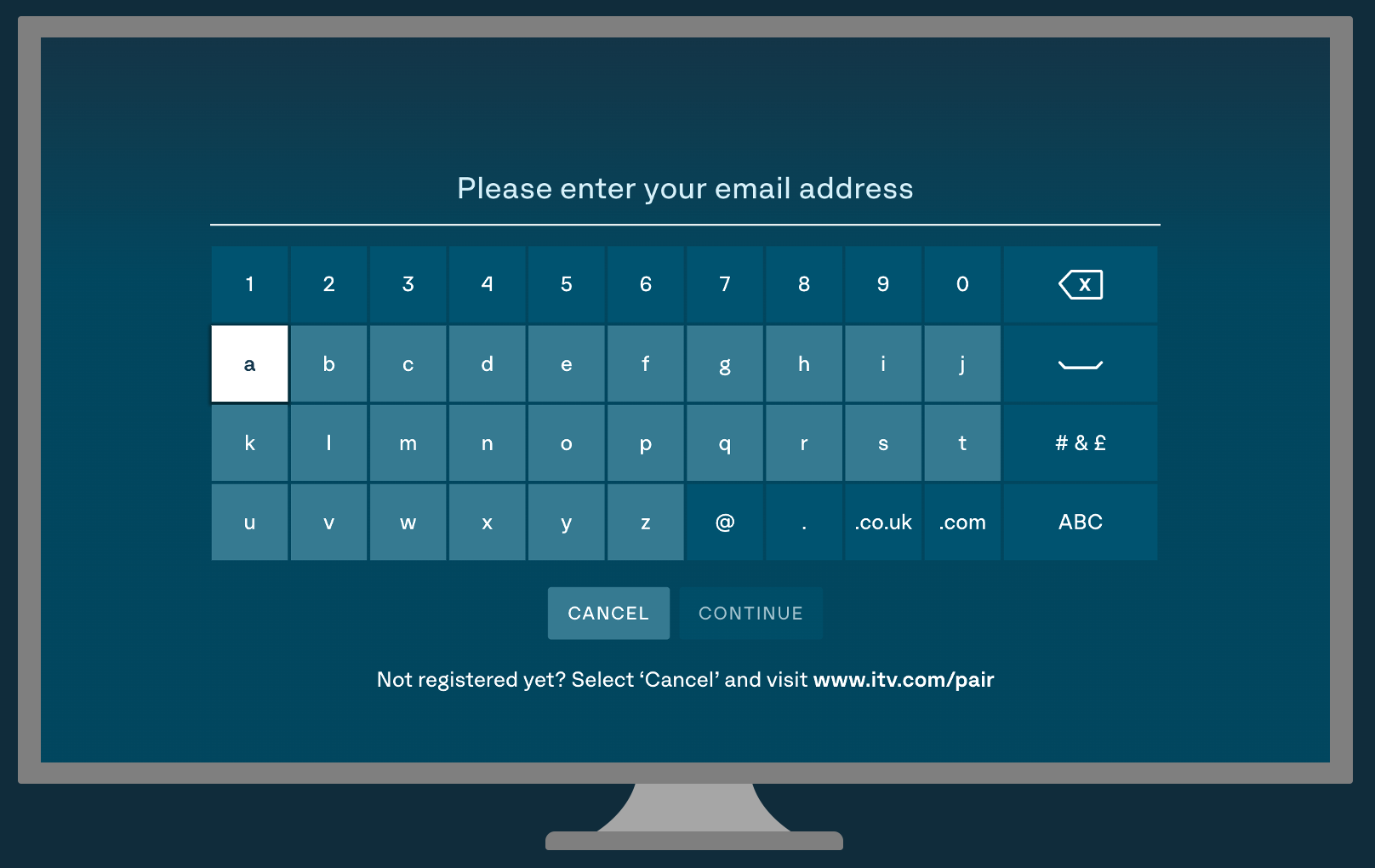
1. Using your TV device's remote control, choose the "Sign in with TV remote" option on the TV screen.
2. Use the keyboard with your remote's directional keys to enter your email address. Then click Continue.
3. We will send a sign-in link to your email address.
4. Open the email on your phone, tablet, or computer and click the 'Sign In' button.
5. Once you click the link, your TV will automatically sign you in to ITVX.
Helpful tip:
The sign-in link is valid for 15 minutes and can only be used once. If the link expires, simply enter your email address on the TV again to receive a new one.
Was this article helpful?
That’s Great!
Thank you for your feedback
Sorry! We couldn't be helpful
Thank you for your feedback
Feedback sent
We appreciate your effort and will try to fix the article