This article will cover everything you need to know about using Chromecast with ITVX:
- How to set up Chromecast
- How to start casting ITVX content
- Using the ITVX Chromecast controls
- How to stop casting
How do I set up Chromecast?
You need to connect your Chromecast device to your TV via the HDMI or USB port, and select the correct input and wifi connection, making sure that your TV and your device are both using the same wifi connection.
You'll also need to make sure you’ve downloaded the Google Cast app onto your device.
Take a look at these detailed Chromecast set up instructions: https://support.google.com/chromecast/answer/6006232?hl=en-GB.
Please note that whichever device you're using should be running the most up to date software.
How do I cast from ITVX?
You can cast live from Apple and Android mobile devices, and web browsers.
Once you’ve set up a Chromecast device on your TV, follow the instructions below.
You can cast shows to your TV from your mobile device via the ITVX app or from a browser on your PC/Mac.
Example screenshots below show what each step looks like on an Apple mobile device.
Step 1: Navigate to the programme you'd like to watch on your mobile device/PC/Mac.
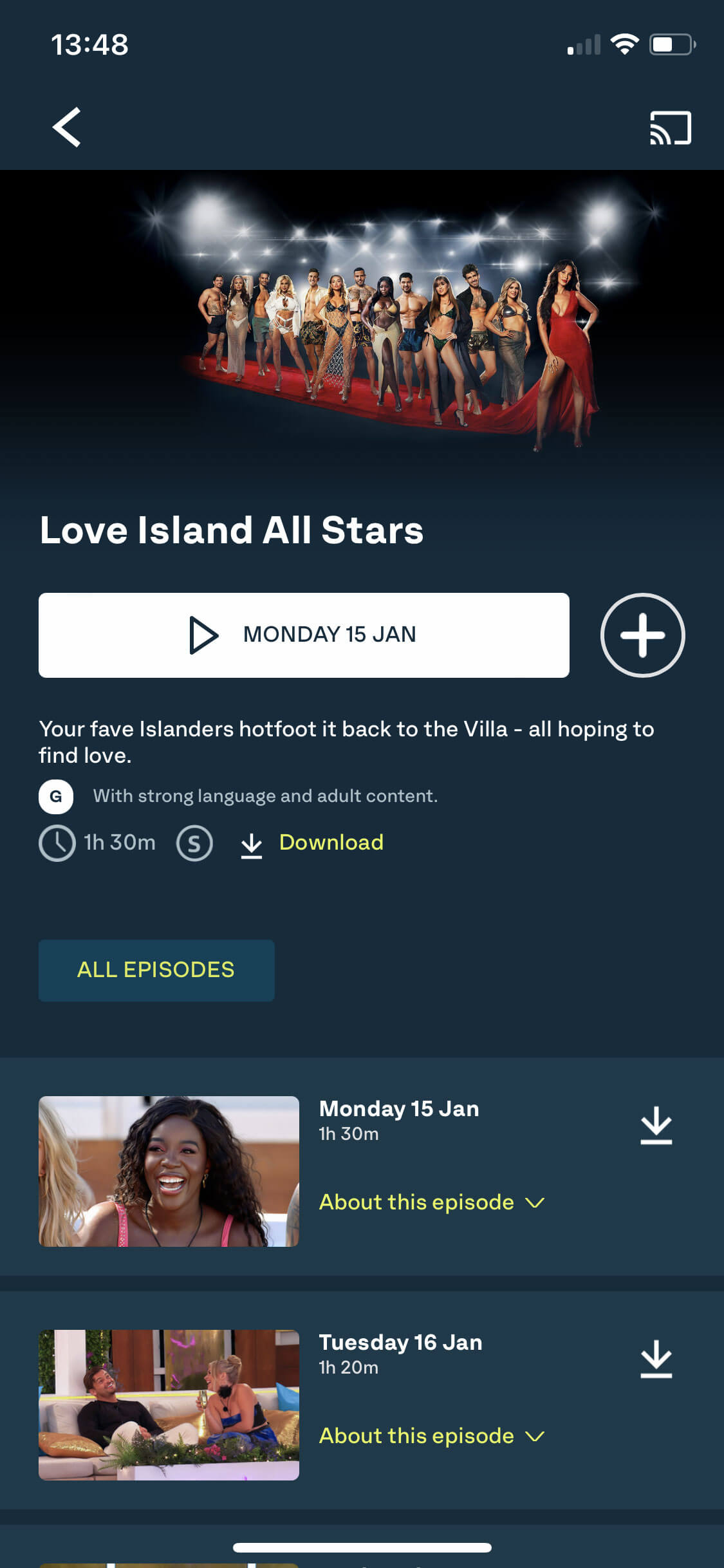
Step 2: Tap the Chromecast icon.
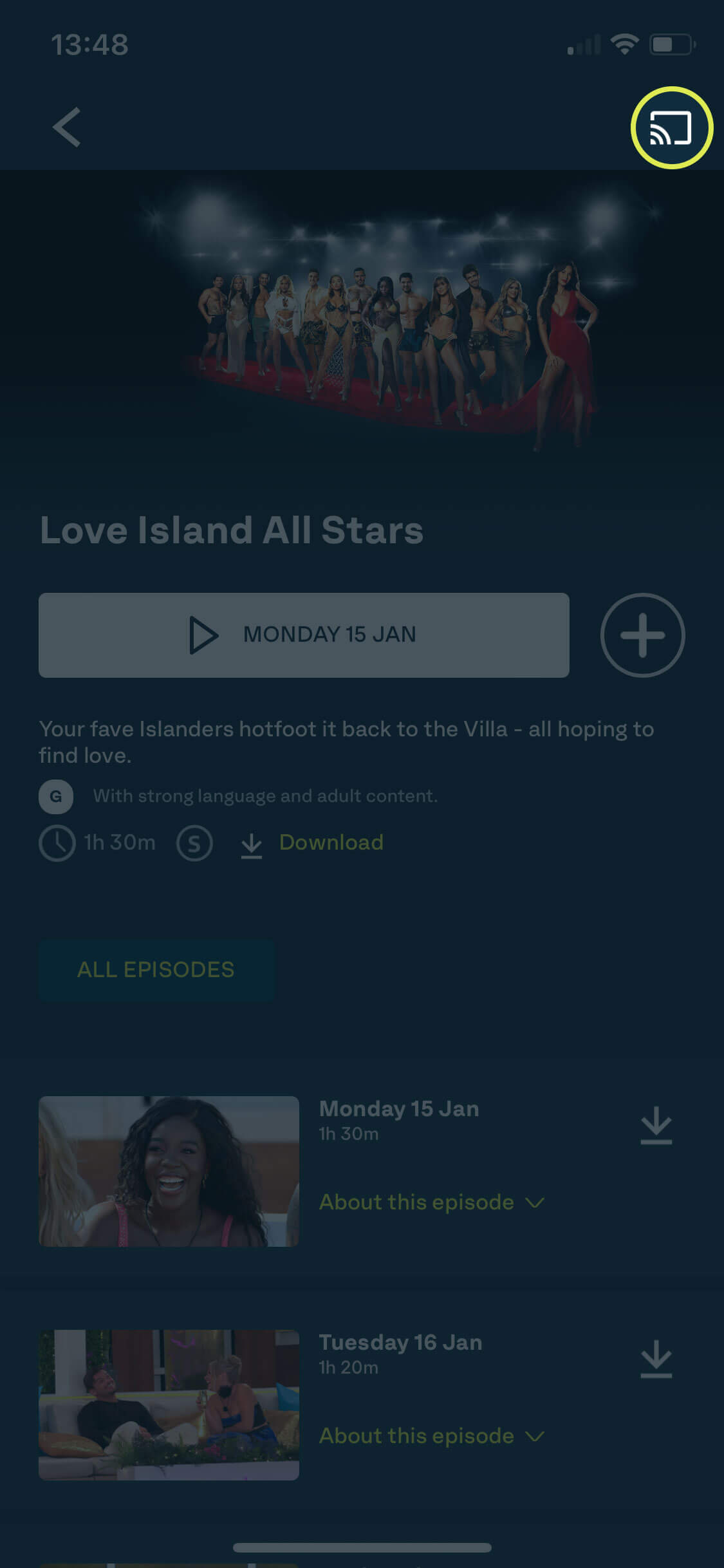
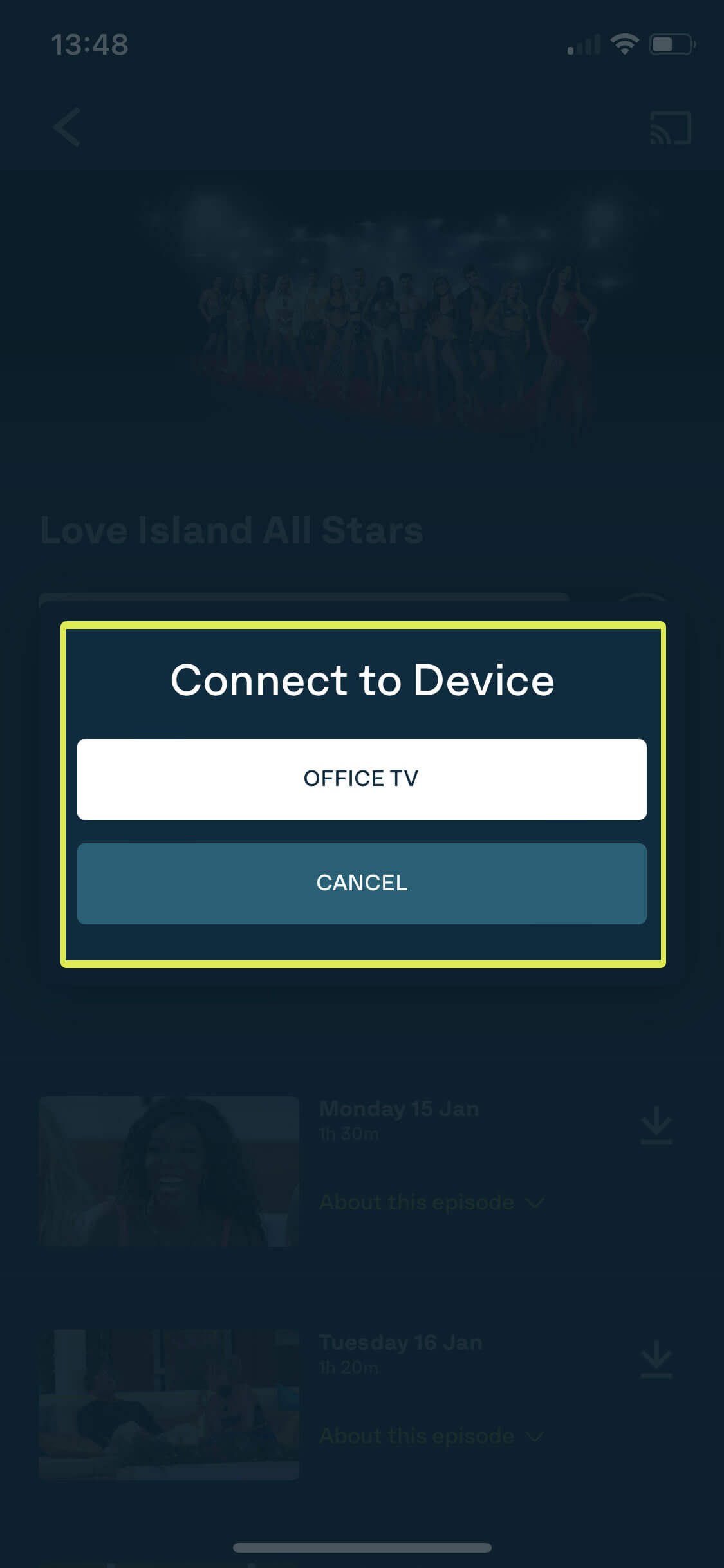
Step 3: When prompted, choose the device you want to watch on from the list (eg in the example below "Office TV").
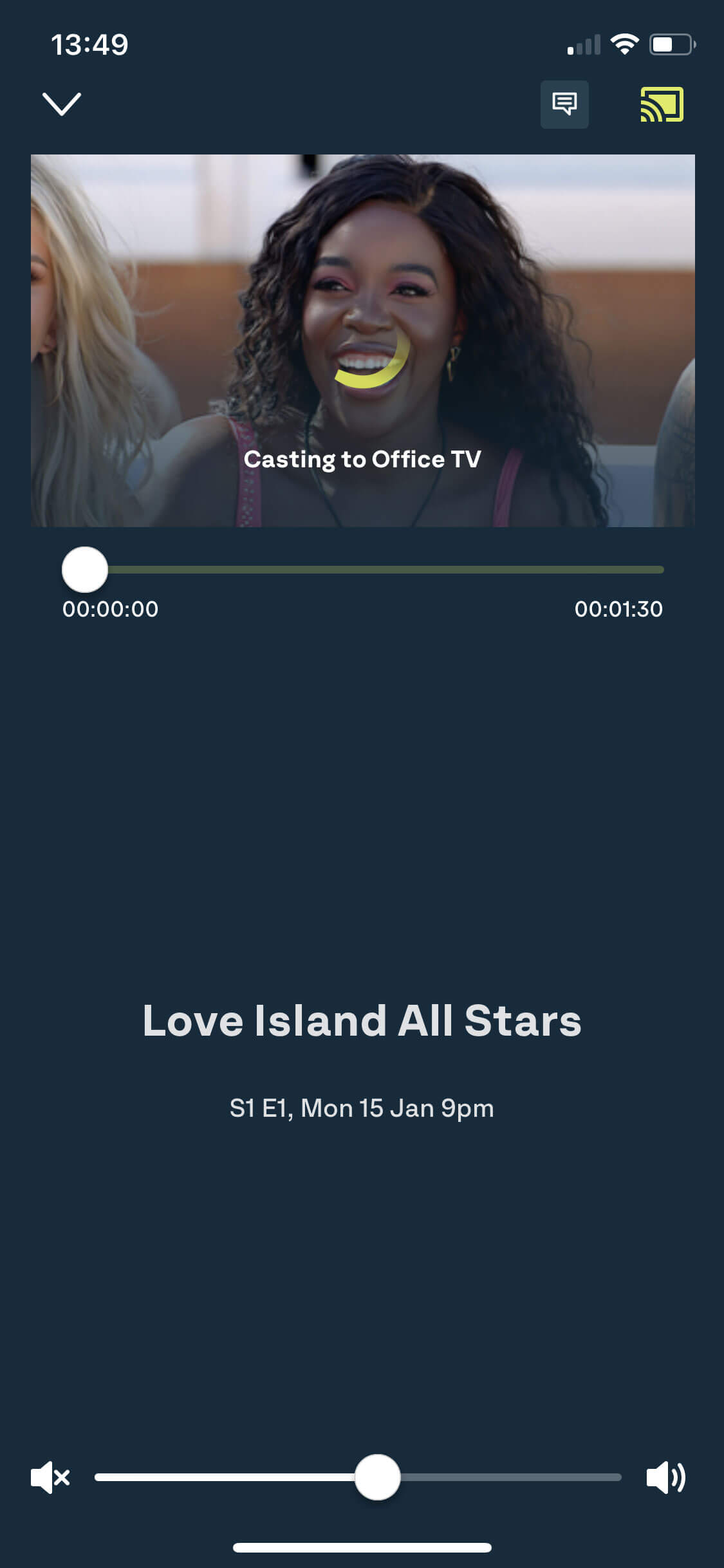
Step 4: Then just press play. Your show should automatically connect and start playing.
How do I use the controls for casting ITVX?
If you’re casting from your phone, just tap the casting bar at the bottom of the screen to bring up the controls for play and pause.
If you’re casting from a computer browser, just click on the Chromecast icon to bring up your browser’s controls.
How do I stop casting ITVX?
If you’re casting from a mobile device, here’s how to stop casting.
On a show screen, tap the Chromecast icon in the top right corner of the screen and you’ll be given the option to disconnect.
If you’re looking at another page on the ITVX app, tap ‘Open’ on the casting bar at the bottom of the screen.
If you’re casting from a computer browser, just click on the Chromecast icon and you’ll be given the option to stop casting.
Was this article helpful?
That’s Great!
Thank you for your feedback
Sorry! We couldn't be helpful
Thank you for your feedback
Feedback sent
We appreciate your effort and will try to fix the article